5 min read
How to Prepare Files for Print: Bleed, CMYK, and Resolution
Practical guide to preparing print-ready files: setting up bleed, CMYK color profiles, 300 DPI resolution, and outlined vector fonts.
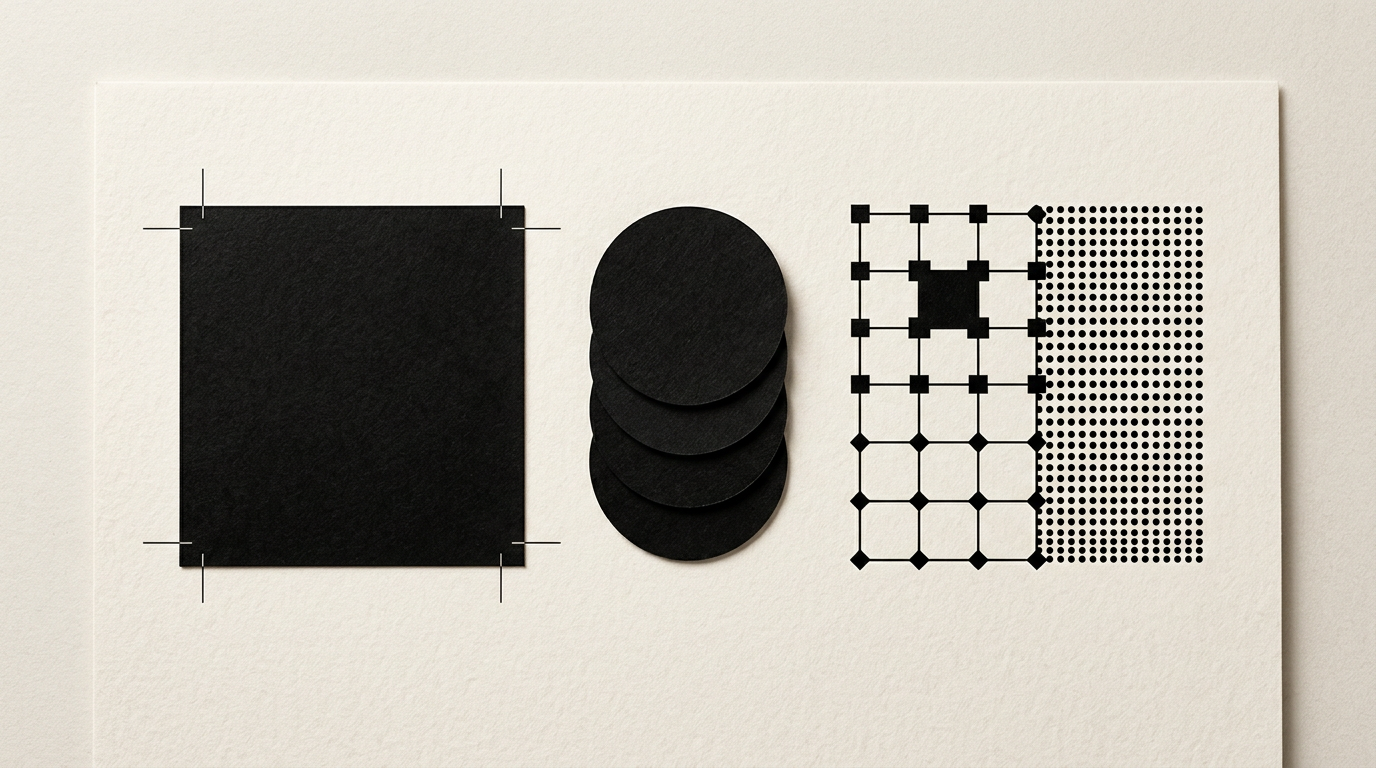
Sending an incorrect file to print almost always leads to delays, extra costs, and misprinted materials. As a graphic designer, I frequently see projects rejected by print shops due to simple technical errors like missing bleed or wrong color profiles. Here are clear answers to the most common questions about preparing files correctly for print.
Why do printed colors look different from what I see on my screen?
Colors differ because monitors use the RGB color model (light), whereas printing equipment uses CMYK (ink). When you design graphic design assets directly in RGB, your screen displays bright neon greens or electric blues that physical inks simply cannot reproduce. When the file is automatically converted to CMYK at the print shop, these colors turn dull and lose saturation. The solution is to work from the start in the CMYK color space (such as ISO Coated v2 or FOGRA39) and not rely on an uncalibrated monitor. Furthermore, if your project is part of a strict visual identity, use specific Pantone (PMS) spot colors for critical corporate branding.
What is bleed and why do I get unexpected white edges on print?
Bleed is the extra background area that extends beyond the final cut size of the document, preventing unsightly white borders after trimming. Cutting machines at print shops have a physical tolerance of 1–2 mm, meaning the blade cut is never 100% perfectly aligned with the theoretical edge. Without bleed, any slight movement of the blade leaves an unsightly white line along the edge.
To avoid this issue, set up your print file as follows:
- Add a standard 3 mm bleed on all four sides (or 5 mm for booklets and packaging).
- Extend all background colors, photos, and marginal elements all the way to the outer bleed line.
- Keep all important text and logo elements inside a "safe zone" at least 3–5 mm inside the trim line.
What resolution must images have for a sharp print result?
Images intended for print items viewed up close must have a native resolution of 300 DPI (dots per inch) at 100% scale. An image downloaded from the web usually has 72 DPI, being optimized exclusively for web or a presentation website, meaning it will look pixelated and blurry when printed. Manually changing the DPI setting from 72 to 300 in photo editing software does not add real detail; it only duplicates existing pixels, degrading overall image quality.
Optimal resolution varies based on viewing distance:
- 300 DPI for small to medium prints (business cards, flyers, brochures, labels, packaging).
- 150 DPI for medium formats (A2, A1, A0 posters) viewed from about one meter away.
- 72–100 DPI for large outdoor banners where the viewer stands several meters away.
What file format should I send to the printer and how do I export it?
The universal industry standard accepted by modern print shops is PDF, specifically the PDF/X-1a:2001 or PDF/X-4 profile. Avoid sending PNGs, compressed JPGs, or unedited raw source files (PSD, AI) unless explicitly requested by the printer. A PDF/X file preserves all required information: vectorized fonts, high-resolution images, correct color profiles, and crop marks in a single secure package. When creating packaging or promotional collateral, make sure to check specific technical specifications provided by your print vendor prior to final export.
Why do I need to convert text to outlines before printing?
Converting text to outlines (or vectorizing fonts) transforms editable type into fixed geometric vector shapes, preventing missing font substitutions at the print shop. If the printer does not own the exact font file you used, their prepress software will automatically replace missing fonts with a generic alternative (like Arial), ruining your layout and letter spacing. By converting all text to outlines (Ctrl+Shift+O in Adobe Illustrator), your document becomes independent of system fonts installed at the print shop. Always save an editable copy of the document before converting, as outlined text can no longer be edited.
What is rich black and when should I use it in print design?
Rich black is a mixture of process black (K) combined with percentages of other CMYK inks (C, M, Y) used to produce a deeper, darker, and more saturated black on large surface areas. If you use K:100% (plain black) on large background areas, the printed result will look like a dull, washed-out dark gray. However, rich black must be applied strategically to prevent ink registration issues.
- Use 100% K (0% C, M, Y) for small body text (under 12 pt), thin lines, and barcodes to avoid blur caused by slight plate misalignment.
- Use a balanced mix, such as C:60% M:40% Y:40% K:100%, for large black backgrounds and solid color blocks.
- Never exceed a Total Ink Coverage (TAC) of 300% (e.g., C:70% M:70% Y:70% K:100% = 310%), otherwise the ink won't dry in time and will smudge adjacent sheets.
How do I prepare files for special finishes like spot UV or foil stamping?
Special finishes such as selective UV varnish, gold/silver foil, or embossing require creating a separate vector layer within the file. The artwork for the special finish must be solid vector shapes colored in a dedicated Spot Color (e.g., named "Spot UV" or "Foil Gold") and strictly set to "Overprint". This setting prevents knockout holes in the underlying background print. You can check previous work in my portfolio to see how properly prepared special finishes elevate brand perception.
What's next?
If you need flawlessly printed materials or a complete package starting with logo design, packaging, and brand identity, working with a specialist who understands both creative design and technical print constraints saves time and money. Avoid prepress headaches and extra printing costs. Head over to the contact page to discuss your print or visual project and get files prepared to professional print standards.